
Embedding a referral form on your web site
This explains how to embed a referral form onto your own web site.
With Reco's embed feature, your customers can refer friends directly from your own website — no need to send them to another page. The referral form appears as part of your site, sizes itself automatically, and the whole process (including verification) happens right there.
Get your embed code
- Go to Incentives in your Reco dashboard.
- Choose what to embed:
- A single incentive — click the ⋮ menu on the incentive card and choose Embed.
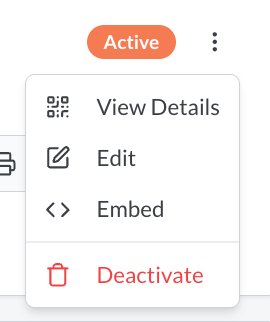
- All your incentives — click the Embed button on the Organisation Incentive Code panel. Visitors will see a list of your current offers and pick one.
- A single incentive — click the ⋮ menu on the incentive card and choose Embed.
- In the popup, use the switches to choose how the form should look (see Customising the form below). The code updates as you flick them.
- Click Copy snippet.
The Embed option is available on incentives managed by a provider with a paid seat.
Add it to your website
Paste the snippet into your page wherever you want the form to appear. It looks like this:
<div class="reco-embed" data-code="ABC123"></div>
<script async src="https://my.reco.tips/embed.js"></script>
Where to paste it on popular platforms:
| Platform | How |
|---|---|
| WordPress | Add a Custom HTML block and paste the snippet |
| Squarespace | Add a Code block (requires a plan that allows code blocks) |
| Wix | Add Embed Code → Embed HTML and paste the snippet |
| Webflow | Add an Embed element and paste the snippet |
| Other / custom site | Paste it into the page's HTML where the form should sit |
That's it. The form loads automatically and adjusts its height as visitors use it — no styling or sizing needed on your side.
Customising the form
These options are set with the switches in the Embed popup. (Behind the scenes they become the data- attributes shown in your snippet.)
| Option | What it does | Attribute |
|---|---|---|
| Form only | Hides your logo and the heading — just the form | data-compact="true" |
| Hide "How it works" | Removes the step-by-step explainer | data-hide-how-it-works="true" |
| Hide footer links | Removes the terms / privacy / help links row | data-hide-footer="true" |
| Hide "Powered by Reco" | Removes the Reco logo for a fully white-label look | data-hide-branding="true" |
| Language | Forces the form language, e.g. Dutch | data-lang="nl" |
This illustrates every option
<div class="reco-embed"
     data-code="ABC123"
     data-compact="true"
     data-hide-how-it-works="true"
     data-hide-footer="true"
     data-hide-branding="true"
     data-lang="nl"></div>
<script async src="https://my.reco.tips/embed.js"></script>
The reward and offer details always stay visible — visitors need those to make a referral.
What your visitors experience
- They fill in their name and email or phone number, right on your page.
- Reco sends them a 6-digit verification code, which they enter without leaving your site.
- Once verified, they get their personal referral link to share — and you see the referral in your Reco dashboard like any other.
Spam protection and identity verification are built in automatically. You don't need to configure anything.
Tips
- Multiple forms on one page — allowed. Add one
<div class="reco-embed">per incentive; you only need the<script>line once. - Editing options later — just generate a fresh snippet from the dashboard and replace the old one, or edit the
data-attributes directly. - Your incentive changes automatically — the embed always shows the incentive's current details. If you deactivate an incentive, the form tells visitors it's no longer available.
Troubleshooting
The form doesn't appear at all.
Some website builders block scripts. Use this plain version instead — it works everywhere, but has a fixed height (adjust height to fit):
<iframe src="https://my.reco.tips/embed/r/ABC123"
        width="100%" height="720" style="border:0"></iframe>
You can add the same options to the address, e.g. https://my.reco.tips/embed/r/ABC123?compact=1&hideFooter=1&lang=nl.
The form shows "no longer available". Check that the incentive is still active in your dashboard, and that the code in your snippet matches the one shown there.
The form appears in the wrong language.
The form follows the visitor's browser language. To force a language for everyone, set the language option in the snippet (e.g. data-lang="nl").
Still stuck? Contact us through the Help section in your dashboard.