
Adding notes to referrals
provider
Keep your team informed by adding notes to referral records.
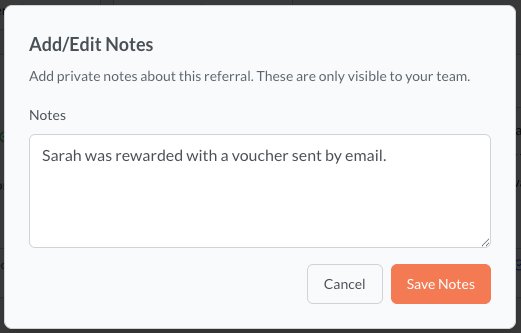
Notes help you and your team keep track of what's happening with each referral. They're visible only to members of your organisation - clients and referees don't see any notes you make.
How to add a note
- Navigate to Referrals and click on the referral you want to annotate
- Click on Add Note on the bottom of the referral card
- Type your note in the text field and press Save
What to include in notes
Notes are a flexible tool — use them however best suits your workflow. Common uses include:
- Contact attempts — "Called referee on 15 Jan, left voicemail"
- Appointment scheduling — "Consultation booked for 22 Jan at 2pm"
- Outcome tracking — "Referee signed up for monthly plan"
- Follow-up reminders — "Follow up in 2 weeks to check satisfaction"
- Internal context — "Referred by long-standing client, high priority"
Team visibility
All notes are visible to everyone in your organisation who has access to referrals. This makes handoffs between team members smooth — anyone picking up a referral can see its full history at a glance.
Notes vs status updates
Notes are for internal commentary and context. They don't change the referral's status. To move a referral forward in its lifecycle, use the status action buttons rather than adding a note.