
Inviting and managing team members
Add, edit, and remove team members from your organisation.
Reco lets you invite colleagues and staff to join your organisation so they can create incentives, manage referrals, and interact with clients on behalf of your business. There are two groups of team members Location Team Members, whose roles are specific to a location and Organisation Team Members whose role covers the whole organisation.
How to invite any team member
From the dashboard click Organisations. For each type of organisation (solo, single location, multi location), there is a different way of creating and associating team members to your locations.
For all team members, the user is invited to the Organisation and they receive an invitation for each role by email, and an acceptance banner on their Client Dashboard. If they do not have an account, they are first invited to sign up as a Client of a Provider and then accept an invitation. On accepting an invitation they are directed to your organisation dashboard.
For solo operators
You do not have the ability to invite team members. You need to change the type of account at the bottom of the page.
For single location businesses
As you only have one location, all invitations can be handled from the Team tab
For multi-location businesses
Location level team members are managed on the Locations tab. You will invite each team member to each location.
Location Team Members
Single and multi location level businesses can have different providers at a given location. These providers can create incentives which direct referrals to themselves. This is useful if your customers prefer receiving a service from a specific person, or your providers are independent contractors.
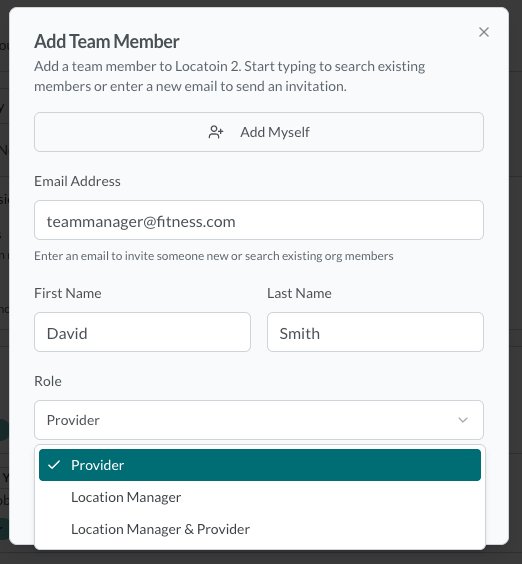
After you create a location, you can invite team members to it. They can be given permissions of either Location Managers or Providers or both.
Select a location (if you are on the Locations tab) and Click on Add Member. Then enter the details and select the Role. You can also click Add myself if you want to add yourself to the Location.
Roles of Location Team Members
| Role | What they can do |
|---|---|
| Location Manager | Manage referrals and team at their assigned location, or (optionally) across the organisation |
| Provider | Create incentives for themselves and action referrals assigned to them, or (optionally) their location |
Permissions
Once you have added the user, you can change their permissions using the 3 dot menu on the user. Each role has different permissions.
For Providers you can control whether they can see and/or action all referrals at their location, not just those assigned to them.
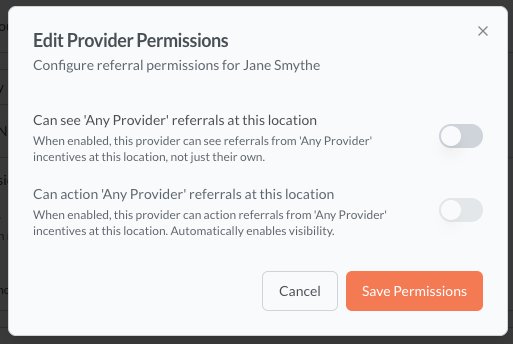
You can also set a provider as being the Primary provider. The provider will receive all referrals that are not specific to a provider at a location (more information on setting up incentives >>
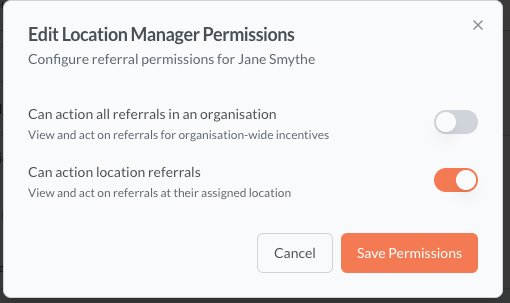
For Location Managers you can control whether they can see and/or action referrals at their location or all referrals across the organisation
Organisation level team members
There are two types of Organisation level team members - Owners and Managers. Their roles are straight forwards.
| Role | What they can do |
|---|---|
| Owner | Full access to everything |
| Manager | Manage team, locations, incentives, and referrals (no billing access unless explicitly given) |
Organisation Managers are invited on the Team Tab. Once invited you can also assign billing permissions to an Organisation Manager so they can purchase subscriptions.
Transferring ownership
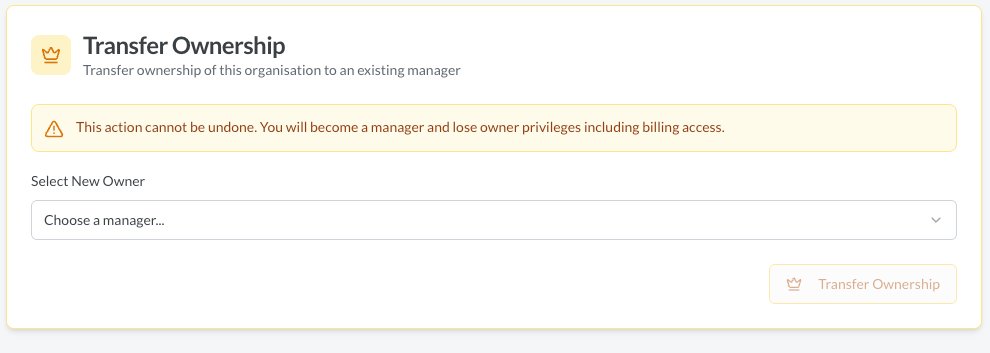
An organisation can only have one owner, and this is assigned to a current manager at the bottom of the Overview tab
Pending invitations
You can view all pending invitations on the Team page and on each Location's team. From there you can resend or cancel an invitation if needed. Invitations expire after 7 days if not accepted.