
Using Your Wallet as a Client of Providers
Your wallet is where you keep the incentives you want to share with friends, family, and colleagues.
Your wallet is where you keep the incentives you want to share with friends, family, and colleagues. Think of it as a collection of referral offers ready to go.
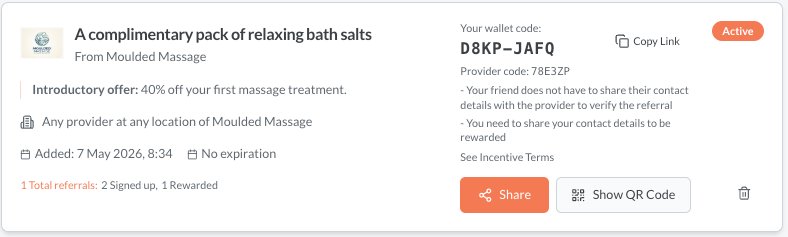
When you add a provider's incentive to your wallet, you create your own version of it, and any referrals you make are then linked to you. The web version of the wallet card is below.
Adding Incentives to Your Wallet
You add incentives yourself - nothing appears automatically. There are two ways:
Entering a Code
- Tap Enter Code in your wallet.
- Type in the code you received (e.g.,
A1B2C3). - If it's an incentive code, the offer is added to your wallet immediately.
- If it's an organisation code, you'll see a list of all available offers from that business. Choose individual ones or tap Add All.
Scanning a QR Code
- Tap Scan QR Code in the add-code dialog.
- Point your camera at the QR code of the incentive.
- If it resolves to a single incentive, it's added directly.
- If it resolves to an organisation, you're taken to a page showing all their available offers.
What a Wallet Card Shows You
Each card in your wallet displays:
| Detail | Description |
|---|---|
| Provider name & logo | The business offering the incentive |
| Your reward (the headline) | Your reward when the person your refer signs up to the provider |
| Introductory offer | The introductory offer for the person you refer |
| Your wallet code | Your unique wallet code for this incentive, personal to you |
| Provider code | The original incentive code from the provider |
| Expiry date | When the offer ends, or "No expiration" if open-ended |
| Date added | When you added the incentive to your wallet |
| Scope | Where the offer applies, if there are any restrictions (e.g., specific locations) |
| Referral counts | A breakdown of your referrals by status (only shown once you've made at least one referral) |
| Contact detail requirements | Whether you or your friend have to share your contact details to receive the offer or reward |
| Incentive Terms | Tap to view any rules set by the provider for the incentive |
| Status badge | Active, Expired, Used, or Unavailable |
Creating a Referral
When you're ready to refer a friend, there are three ways to do this from an incentive.
Tap Share on a wallet card.
After press Share
- Enter your friend's name (required - however this can be anything).
- Add a personal message (optional — up to 500 characters).
- Select if you want to share your contact details with the provider. If you choose not to, you will be shown whether you can still receive the reward or not. Learn more here.
- Tap Create and Share Referral.
- Your device's native share sheet opens (WhatsApp, iMessage, email, or any app you choose).
- A unique short-link is generated and included in the message text.
If your device doesn't support native sharing, the referral link and message may be copied to your clipboard instead. You can then paste it wherever you like.
Show QR Code
This is ideal for in-person referrals. Tap Show QR to display your unique referral QR code on screen. Your friend scans it with their phone camera and is taken directly to the referral acceptance page where they enter their details as if you had shared directly. Because they are scanning your unique QR code the referral is still linked back to you, so you can still receive your reward when they sign up.
Copy Link
Tap Copy Link to copy your referral link (my.reco.tips/r/YOURCODE) to your clipboard without opening the full share flow. You can then just share this directly with your friend. This takes them to the same referral acceptance page, as if they had scanned the QR code.
Share Limits
Some incentives have a maximum number of referrals you can make. After you have reached this limit the incentive is inactive for you, but existing referrals continue to be tracked and rewarded as normal.
Wallet Item Statuses
| Status | Meaning | Can you share? |
|---|---|---|
| Active | Incentive is live | Yes |
| Expired | End date has passed | No |
| Unavailable | The provider's subscription is inactive | No |
Note: If an incentive shows as unavailable, your existing referrals are not affected — only new sharing is paused.
Removing an Incentive
- Tap the delete icon on the wallet card.
- Confirm removal.
Removal hides the incentive from your wallet but does not delete your referral history or cancel any pending referrals. If you re-add the same incentive code later, your previous data is restored.