
Tracking referrals you have made
Monitor your referrals and understand what each status means and claim referrals from before you made an account
Your referrals are tracked every step of the way, giving you updates on how they are progressing. You can track these in your Reco account, or using the link you were sent when you made the referral.
Each referral moves through different stages and the status of these are outlined at the bottom of this page.
How to Track Your Referrals
From Your Account
- Go to My Referrals from your dashboard
- You'll see all referrals you've made (sent to friends) and received (sent to you by others using the contact details you have on Reco)
- Use the filters to narrow by:
- Made / Received — toggle between referrals you sent and ones you received
- Provider — filter by a specific provider
- Status — filter by Pending, Active, Signed Up, or Rewarded
- Use the search bar to find referrals by provider name, contact details, or referral code
Without an Account (Using the Referral Tracking Link)
Every referral has a unique status link (e.g. my.reco.tips/c/AB12CD). You can use this to check the status of your referral without logging in:
- Visit the link
- Verify your identity by entering the last digits of your phone number or your email address
- View your referral status, verification progress, and any offers or rewards
This link is included in the emails and SMS messages you receive when a referral is created.
Understanding the Referral Card
Each referral on your referrals page is displayed has a card. Here's what each element means:
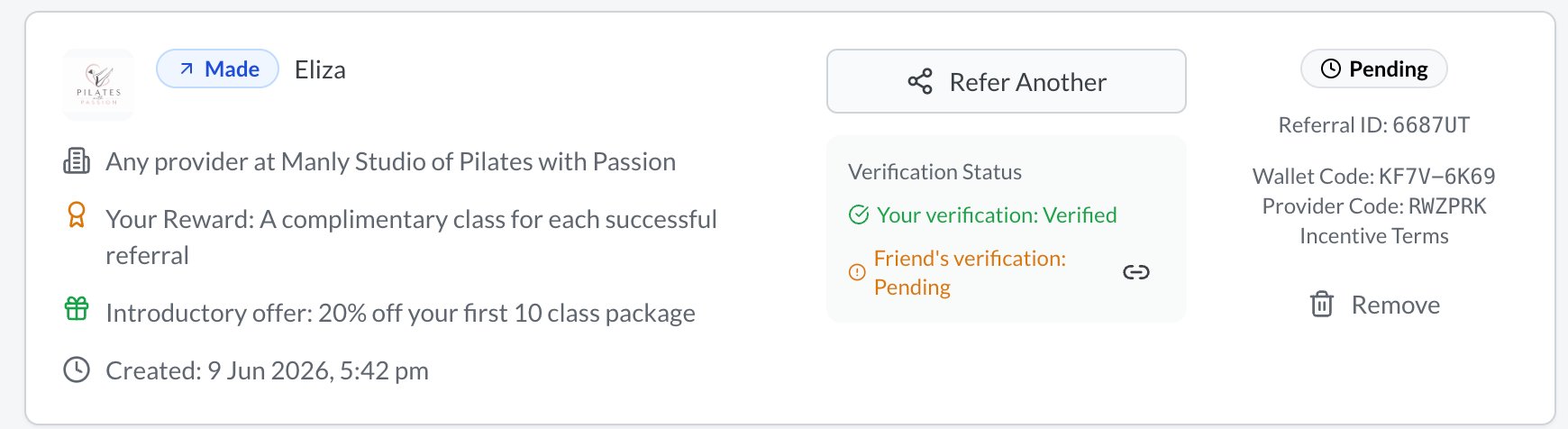
Header
- Logo (image) - Logo of the provider
- Made (blue badge) - You sent this referral to someone
- Received (purple badge) - Someone referred you
- Person's name - The friend you referred, or the person who referred you
Verification Status
- Two verification indicators showing whether you and your friend have verified their details
- If verification is still pending, you'll see a Link button so you can copy-paste the link and share with the person receiving the referral in case they have lost it.
Offer Details
- For referrals you made:
- What your friend gets (the introductory offer)
- What you get (your reward)
- For referrals you received:
- What's on offer to you
- Any personal message from the person who referred you
- Your discount code (shown once the referral is active)
Status & Codes
- Status badge — Current status (Pending, Active, Signed Up, Rewarded)
- Referral code — The unique 6-character code for this referral
- Wallet code — Your personal referral code (if you shared from your wallet)
- Provider code — The provider's incentive code
- Date — When the referral was created
- Incentive Terms — Link to the incentive terms and conditions
Actions
Depending on the referral status, you may see various action buttons:
| Action | When It Appears | What It Does |
|---|---|---|
| Refer Another | On referrals you made | Opens the share dialog so you can refer another friend using the same incentive which was used to make the selected referral |
| Request Update | When status is Active | Sends a reminder to the provider asking them to update the referral status - you can do this every 7 days (or just call them!) |
| Request Reward | When status is Signed Up | Sends a reminder to the provider asking them to process your reward |
| Confirm Service Received | On referrals you received (active) | Lets you confirm that you've received the provider's service |
| Add to Wallet | When the incentive isn't in your wallet yet | Adds the provider's incentive to your wallet so you can refer others |
| Remove | On any referral | Remove the referral from your view |
How to Track Your Referrals Without an Account
Every referral has a unique status link (e.g. my.reco.tips/c/AB12CD). You can use this to check the status of your referral without logging in:
- Visit the link
- Verify your identity by entering the last digits of your phone number or your email address
- View your referral status, verification progress, and any offers or rewards
This link is included in the emails and SMS messages you receive when a referral is created.
Claiming Referrals Made Before You Had an Account
If you made referrals before you created your Reco account, these are called orphaned referrals. When you first log in to your dashboard:
- A dialog will appear showing any referrals linked to your email or phone number. Alternatively at any time you can press "View Unlinked" to see referrals associated with your contact details that are not linked to your account
- Review the list — it shows the provider, your role (referrer or referee), and the date
- Select the ones you want to claim and tap Link Selected
- Optionally check Add incentives to wallet to save the provider's incentive for future referrals
- The referrals will appear on your My Referrals page
If you don't want to claim them, tap Ignore All.
Referral Statuses
Successful Statuses
Each successful referral moves through these stages:
| Status | What It Means |
|---|---|
| Pending | The referral has been created but one or both parties still need to verify their details. The provider cannot act on it yet. |
| Active | Both parties are verified. The provider has been notified and should be getting in touch with your friend. |
| Signed Up | The provider has confirmed that your friend has used their service. Your reward should be on its way. |
| Rewarded | Your reward has been processed by the provider. |
Removed Statuses
In some cases, a referral may be removed and it may have one of these statuses:
| Status | What It Means |
|---|---|
| Closed | The referral was closed by the provider (e.g. your friend didn't respond or wasn't interested). |
| Deleted | The referral was deleted. |
| Fraud | The referral was flagged as possible fraud by the provider. |
| Declined | The referral was declined by the person referred. |