
Actioning referrals as a provider
How to review and action incoming referrals.
When the contact details of the referrer and the person referred are verified, the Referral becomes Active, and it's time for you or your team to review and action it. You now have the contact details of someone who is actively interested in your service, referred to by someone that was a happy client. It doesn't get much better than that!
You can use the summary dashboard, or the Referrals page to move referrals through to completion. The most important button is the "Show Clients Prompts" button. These are clients that want an update on their referral. Deal with these referrals first, or they may not refer you in future.

Viewing incoming referrals
- Navigate to Referrals from the main menu
- Click on Active to view the referrals that are ready for your attention

Use the filters to see referrals for a specific time period, location, or status

What you'll see
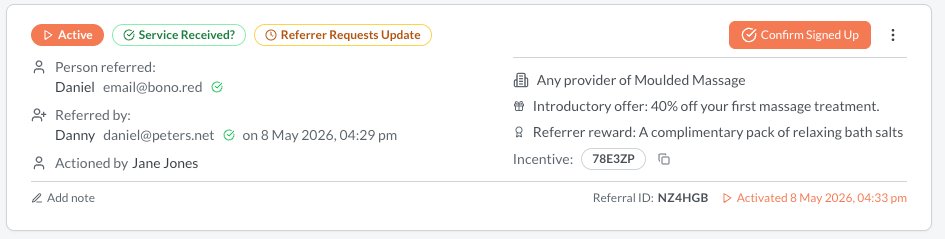
Each referral includes:
- Referrer details — who made the referral
- Referee details — who was referred (name, email, phone)
- Incentive — which offer was used
- Scope - which service provider or location the referral is valid for
- Badges - these indicate the status and prompts from the referrer or person referred
- Action buttons - Press these to move the status forwards
- Dates — when the referral was created and status changed
- Notes — notes you can add to the referral
- Three dot menu - giving you the ability to delete, close or report the referral for fraud
Paying for referrals
To see the details of a referral you need to have credit on your account, or have a stored card with auto top up switched on.
For Pay as you go plans, if you have not loaded a credit card, the first referral will require you to pay the per-referral fee to unlock the details.
For the Flex or Growth plans, you need to have Auto Top Up switched on, so that your referrals are automatically shown.
For more information read more about per referral fees
Actioning a referral
To action a referral, click the Action button. This moves the referral to the next status e.g. confirmed the person referred has signed up, or the referrer has been rewarded.
If you change the status to Confirmed Signed Up the referrer is sent an email advising them that they should be receiving their reward, and reminds them what the reward is for the incentive. This also changes the status of the Referral to "Signed Up" - so you will need to click on the Signed Up filter to see it. Or use the "Total Open Referrals" filter if you don't want to switch between filters as you change status.
If you change the status to Rewarded the referrer is sent an email advising them that they should be receiving their reward, using the "reward message" you configure on your incentive.
Verifying a referral in person
If a client or their friend chooses not to provide their contact details, and you have enabled the option on the incentive, you can verify the client or the person they referred in person.
To do this, click on Verify in Person and select whether you are verifying the new client, or the person who made the referral.
The New Client should be able to provide a code or QR code of the referral. You will then have the option of selecting whether the client has signed up to your service or not. This will change the status of the referral accordingly.
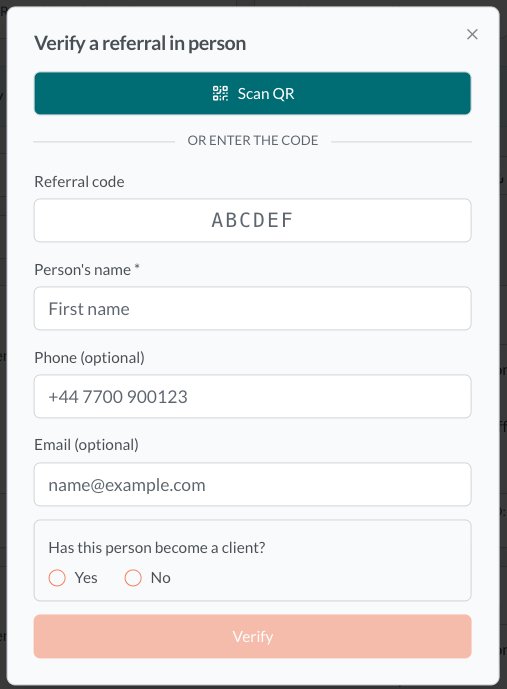
The Referrer should be able to provide a code or QR code of the referral and a 4 digit PIN, that is sent to them when the client signed up. Entering this proves they were there referrer and can be given the reward.
Reporting Fraud
Because you only distribute the rewards after the person being referred has paid, there is no reason for people to create referrals where the person being referred has no intention of signing up.
However, if you notice that someone is using the platform inappropriately, you can report a referral as fraud from the three dot menu, and we will investigate. You will not be charged if it is found to be a fraudulent referral.
Best practices
- Action referrals promptly — the faster you respond, the more likely the person will become a new client
- Add notes to referrals to remember where the conversation with the person referred is up to
- Use filters to prioritise referrals that need immediate attention
- Review your referral queue regularly — don't let verified referrals sit unactioned